Obsidian Bases: Setup Guide and 5 Real Examples (2026)
On this page
- What Bases does
- The five layouts
- Set up your first base
- 1. Turn on Bases
- 2. Give your notes properties
- 3. Create the base
- 4. Filter, choose properties and sort
- 5. Add views and embed the base
- 5 Obsidian Bases examples
- 1. Reading list with a cover shelf
- 2. Project board (Kanban)
- 3. Meeting log
- 4. People and who to catch up with
- 5. Daily notes index and recently edited notes
- Tips that save time
- Bases or Dataview?
- Let AI fill the properties
- Common questions
- Sources
Obsidian Bases is a core plugin that shows your notes as a database: a table, cards, a list, a Kanban board or a map, built from each note's properties. You can sort, filter, group and edit the properties right in the view. Nothing is copied into a separate database: the data stays in your Markdown files, and the view itself is a small .base text file.
This guide covers what Bases does, how to set up your first base step by step, and five real bases you can download: a reading list, a project board, a meeting log, a people list and a daily-notes index. Each one was built and opened in Obsidian 1.15.0.
Checked on November 2, 2026 against Obsidian 1.15.0, released that day, and Obsidian Help.
What Bases does
A base is a saved query over your vault. It starts with every file, narrows them with filters, and shows the result in one or more views. Each row or card is a file; each column is a property.
- Filters keep only the notes you want, by tag, folder, property value, link or date.
- Properties pick the columns, including file details such as name, folder and modified time.
- Formulas add calculated columns, such as days until a due date.
- Sort and group order the results and split them into sections.
- Views save different layouts and filters in the same base, such as "Reading now" and "Finished".
- Editing a cell writes the new value back to that note's properties.
Bases is free, built into Obsidian, and works on desktop and mobile. You can export any view as CSV or copy it into a spreadsheet.
The five layouts
| Layout | What it shows |
|---|---|
| Table (1.9) | Rows of files and columns of properties, with summaries such as Average |
| Cards (1.9) | A grid of cards with an optional cover image |
| List (1.10) | A bulleted or numbered list |
| Map (1.10) | Pins on a map; needs the official Maps plugin |
| Kanban (1.14) | Columns by a grouped property; drag a card to change it |
The number is the Obsidian version that added the layout.
Obsidian 1.15 lets you drag filters to reorder them, shows when search hides some results ("Showing 10 of 40"), and on phones moves filters into the Display menu.
Set up your first base
Bases needs Obsidian 1.9 or later. The steps below use 1.15. Kanban needs 1.14 or later.
1. Turn on Bases
Open Settings → Core plugins and make sure Bases is turned on.
2. Give your notes properties
A base can only show what your notes record. Add properties at the top of each note:
---
tags:
  - book
author: Cal Newport
status: Finished
rating: 4
finished: 2026-09-20
---
The quickest way to keep properties consistent is a template. Our 10 free Obsidian templates include these properties for books, projects, meetings and people, and the examples below use them.
3. Create the base
Use any of these:
- Run Bases: Create new base from the command palette. The base is created in the same folder as the note you have open.
- Right-click a folder in the file explorer and select New base.
- Select Create new base in the left ribbon.
A base with no filters shows every file in your vault.
4. Filter, choose properties and sort
- Open Filter and add a filter that keeps notes tagged
book. Filters under All views apply to every view; filters under This view apply to the open view only. - Open Properties and tick the columns you want, such as
author,statusandrating. Drag them to reorder. - Open Sort, select Add sort and pick a property, such as
finished, newest first. - Optionally open Group and group by a property, such as
status.
Click the code button in the Filter menu to see or type the filter as text. Anything you do in the toolbar is saved to the .base file.
5. Add views and embed the base
Click the view name in the top left and select Add view to add another layout with its own filters and sort. The first view in the list opens by default.
To show a base inside a note, embed it like any file: ![[Reading list.base]], or ![[Reading list.base#Finished]] for a specific view. You can also write the whole base inside a note in a base code block, as the person example below does.
5 Obsidian Bases examples
Each example is a complete .base file. Download it into your vault, or create a new base, open it as text and paste the YAML. They expect notes made from our templates, and they all skip your Templates folder so the templates themselves don't show up as rows.
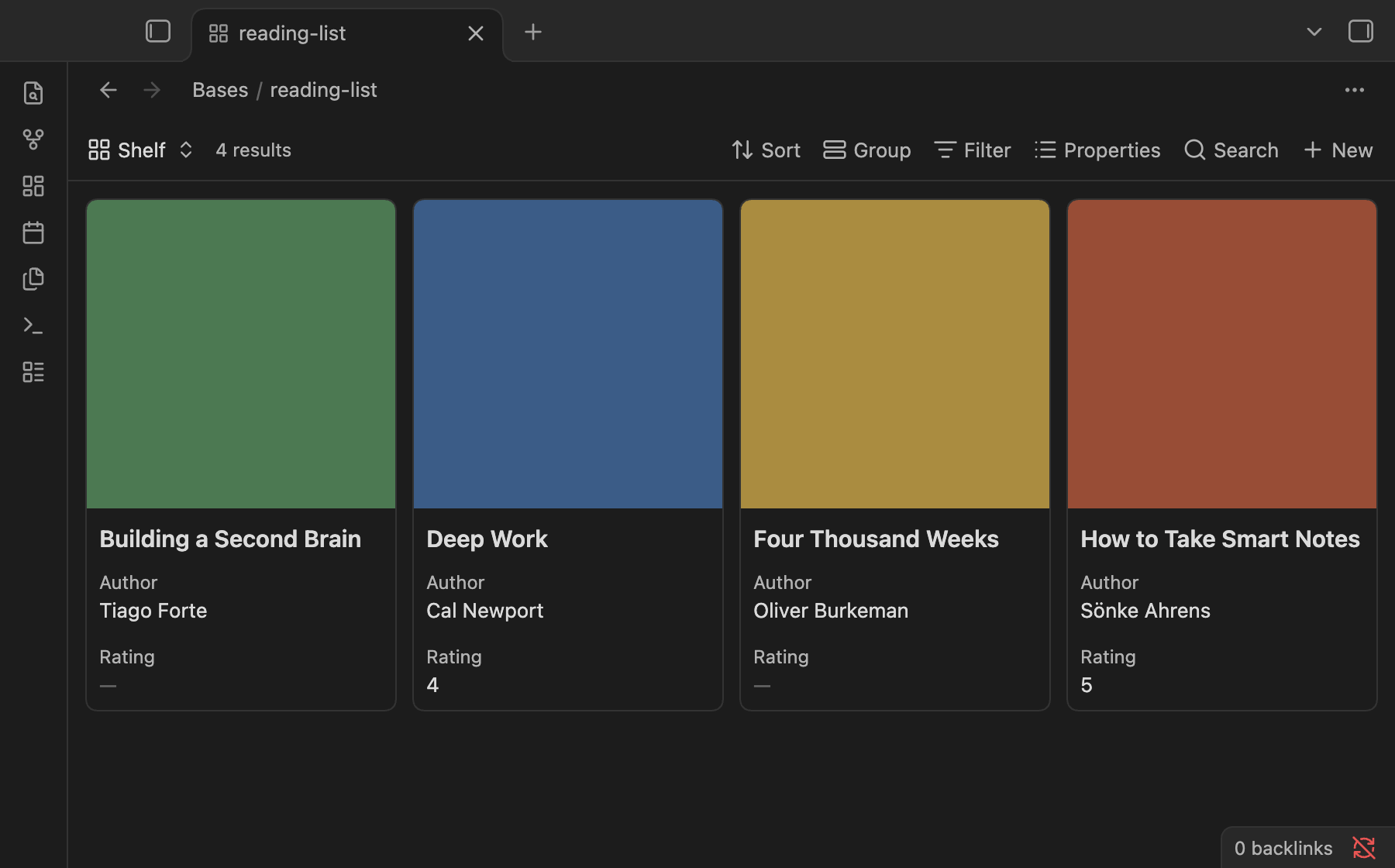
1. Reading list with a cover shelf
Three views of your book notes: what you are reading now, a shelf of covers, and finished books with their average rating. cover can be an image in your vault, an image URL or a hex colour.
filters:
  and:
    - file.hasTag("book")
    - '!file.inFolder("Templates")'
properties:
  file.name:
    displayName: Title
  note.author:
    displayName: Author
  note.rating:
    displayName: Rating
  note.started:
    displayName: Started
  note.finished:
    displayName: Finished
views:
  - type: table
    name: Reading now
    filters:
      and:
        - 'status == "Reading"'
    order:
      - file.name
      - author
      - started
  - type: cards
    name: Shelf
    order:
      - file.name
      - author
      - rating
    image: note.cover
  - type: table
    name: Finished
    filters:
      and:
        - 'status == "Finished"'
    order:
      - file.name
      - author
      - rating
      - finished
    sort:
      - property: finished
        direction: DESC
    summaries:
      rating: Average
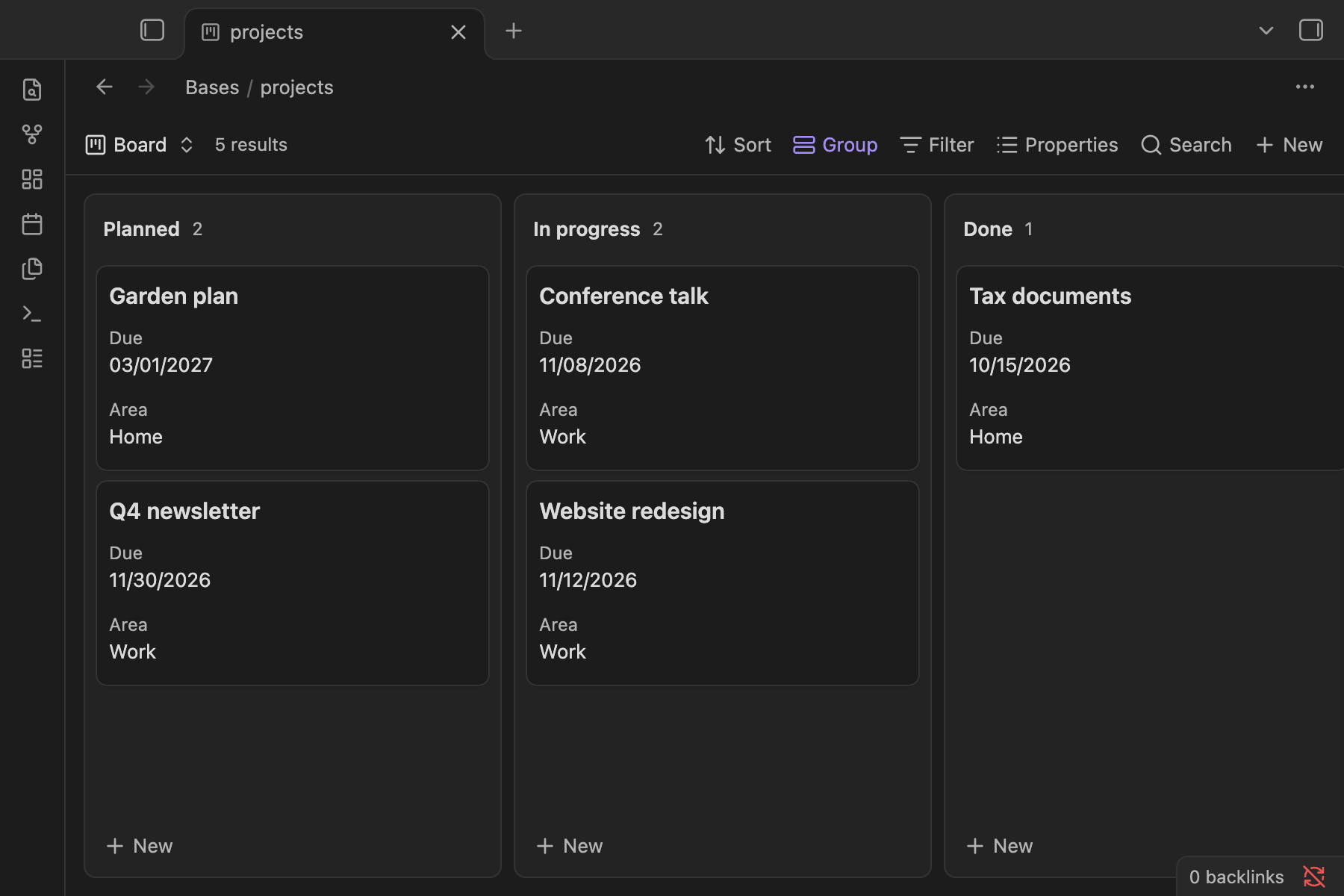
2. Project board (Kanban)
A board with one column per status, plus a table of open projects due in the next 14 days with a Days left formula. Drag a card from Planned to In progress and Obsidian updates that note's status. The New button under a column creates a note with that column's status.
filters:
  and:
    - file.hasTag("project")
    - '!file.inFolder("Templates")'
formulas:
  days_left: 'if(due, (date(due) - today()).days.round(), "")'
properties:
  file.name:
    displayName: Project
  note.status:
    displayName: Status
  note.due:
    displayName: Due
  note.area:
    displayName: Area
  formula.days_left:
    displayName: Days left
views:
  - type: kanban
    name: Board
    groupBy:
      property: note.status
      direction: ASC
    groupOrder:
      - Planned
      - In progress
      - Done
    order:
      - file.name
      - due
      - area
  - type: table
    name: Due in 14 days
    filters:
      and:
        - 'status != "Done"'
        - 'due <= today() + "14d"'
    order:
      - file.name
      - status
      - due
      - formula.days_left
    sort:
      - property: due
        direction: ASC
groupOrder fixes the column order. Without it, columns follow the sort direction of the grouped property. Subtracting two dates gives a duration, so the formula reads .days and rounds it; without .round() a daylight-saving change can show 5.04 days.
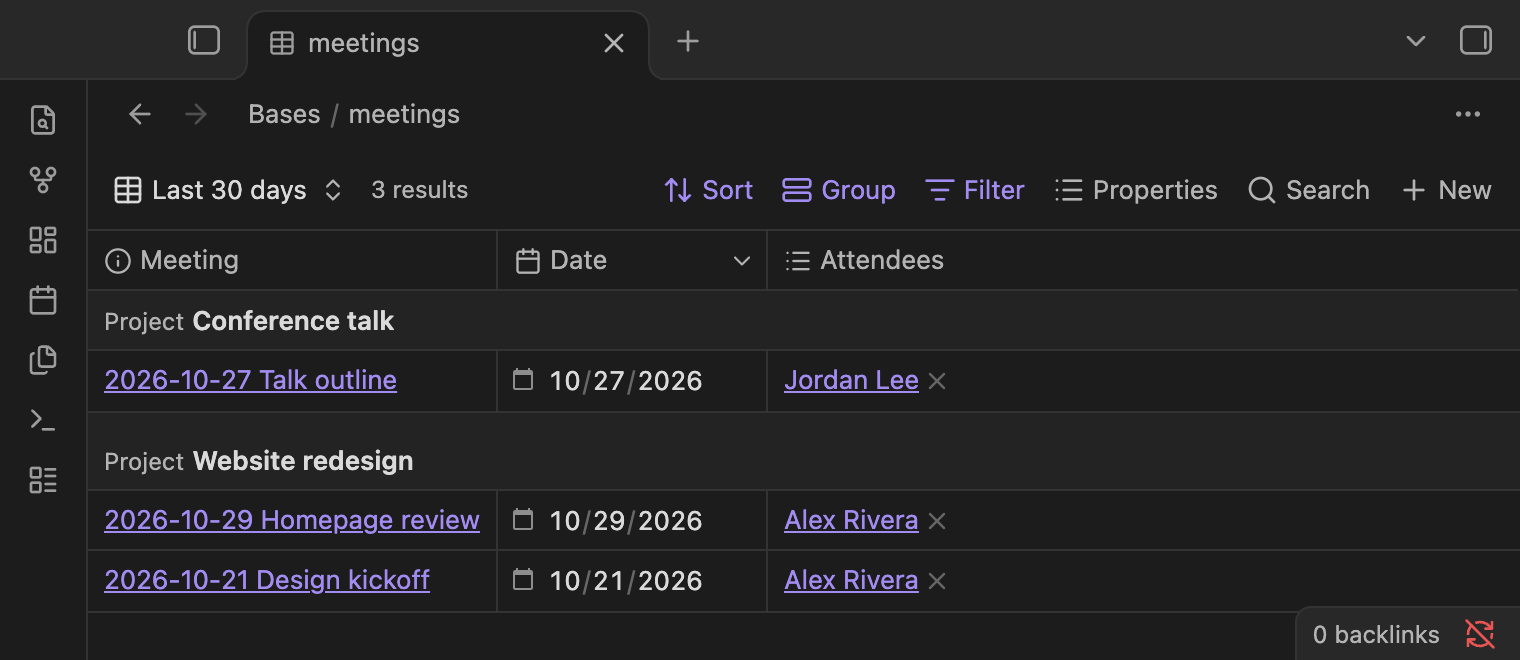
3. Meeting log
Every meeting note, newest first, plus a view of the last 30 days grouped by project.
filters:
  and:
    - file.hasTag("meeting")
    - '!file.inFolder("Templates")'
properties:
  file.name:
    displayName: Meeting
  note.date:
    displayName: Date
  note.attendees:
    displayName: Attendees
  note.project:
    displayName: Project
views:
  - type: table
    name: All meetings
    order:
      - file.name
      - date
      - attendees
      - project
    sort:
      - property: date
        direction: DESC
  - type: table
    name: Last 30 days
    filters:
      and:
        - 'date >= today() - "30d"'
    groupBy:
      property: note.project
      direction: ASC
    order:
      - file.name
      - date
      - attendees
    sort:
      - property: date
        direction: DESC
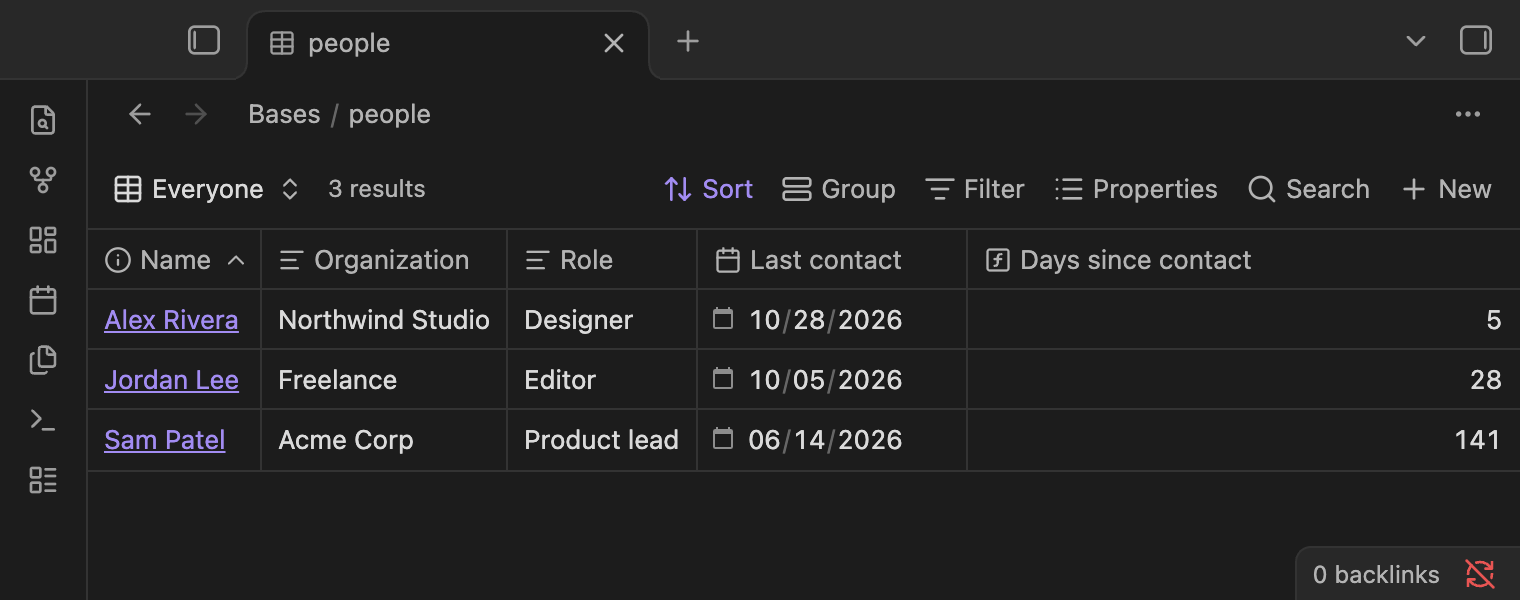
4. People and who to catch up with
A simple contact list with a Days since contact formula, and a Catch up view of everyone you haven't spoken to in 90 days.
filters:
  and:
    - file.hasTag("person")
    - '!file.inFolder("Templates")'
formulas:
  days_since_contact: 'if(last_contact, (today() - date(last_contact)).days.round(), "")'
properties:
  file.name:
    displayName: Name
  note.organization:
    displayName: Organization
  note.role:
    displayName: Role
  note.last_contact:
    displayName: Last contact
  formula.days_since_contact:
    displayName: Days since contact
views:
  - type: table
    name: Everyone
    order:
      - file.name
      - organization
      - role
      - last_contact
      - formula.days_since_contact
    sort:
      - property: file.name
        direction: ASC
  - type: table
    name: Catch up
    filters:
      and:
        - 'last_contact < today() - "90d"'
    order:
      - file.name
      - organization
      - last_contact
      - formula.days_since_contact
    sort:
      - property: last_contact
        direction: ASC
The person template goes one step further. Its embedded base uses this, which inside an embed means the note that contains it, so every person note lists the meetings that link to that person:
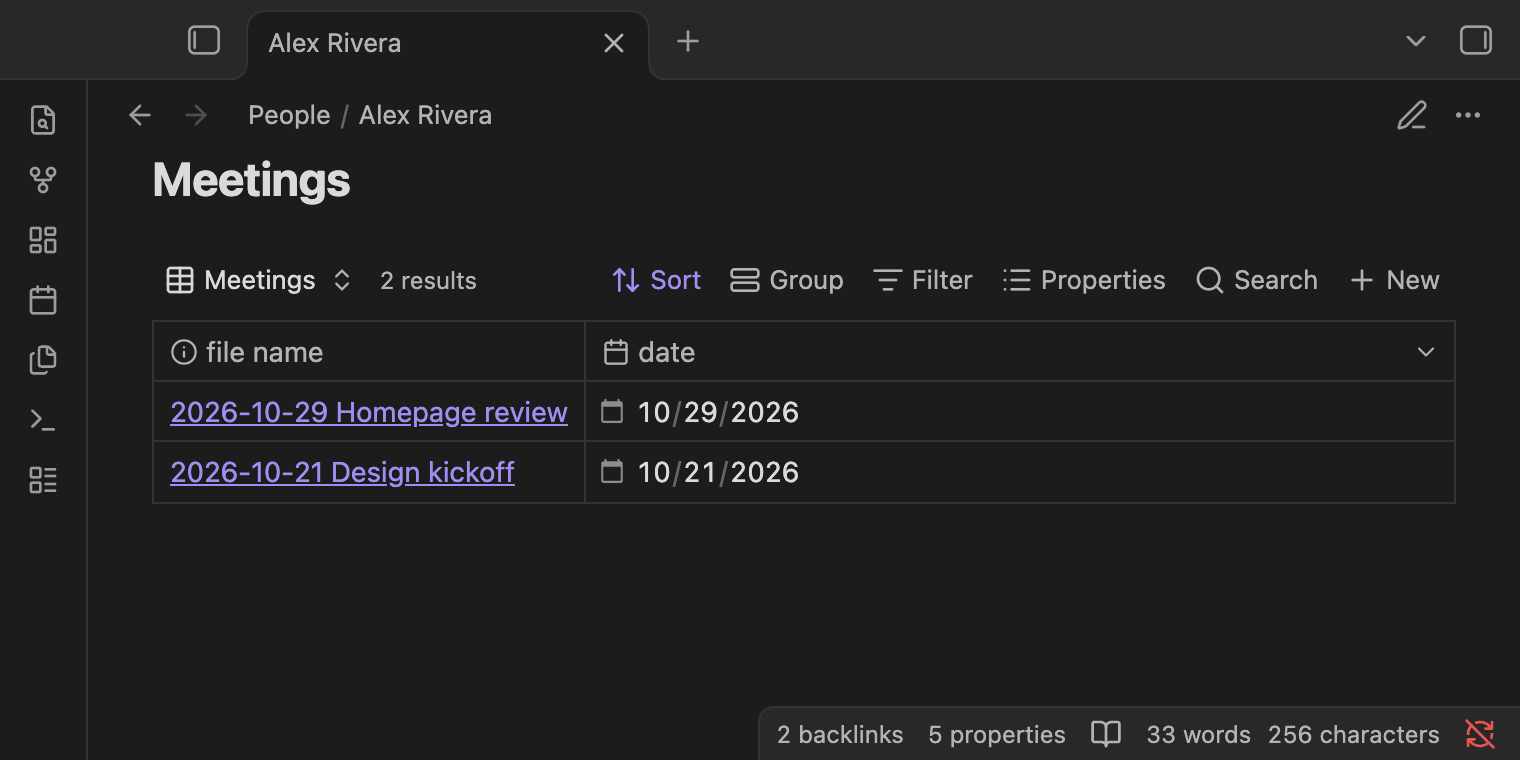
```base
filters:
  and:
    - file.hasTag("meeting")
    - file.hasLink(this.file)
views:
  - type: table
    name: Meetings
    order:
      - file.name
      - date
    sort:
      - property: date
        direction: DESC
```
5. Daily notes index and recently edited notes
A list of your last 31 daily notes, newest first, and a table of every note you edited in the past week, wherever it lives. This base has no global filter; each view has its own.
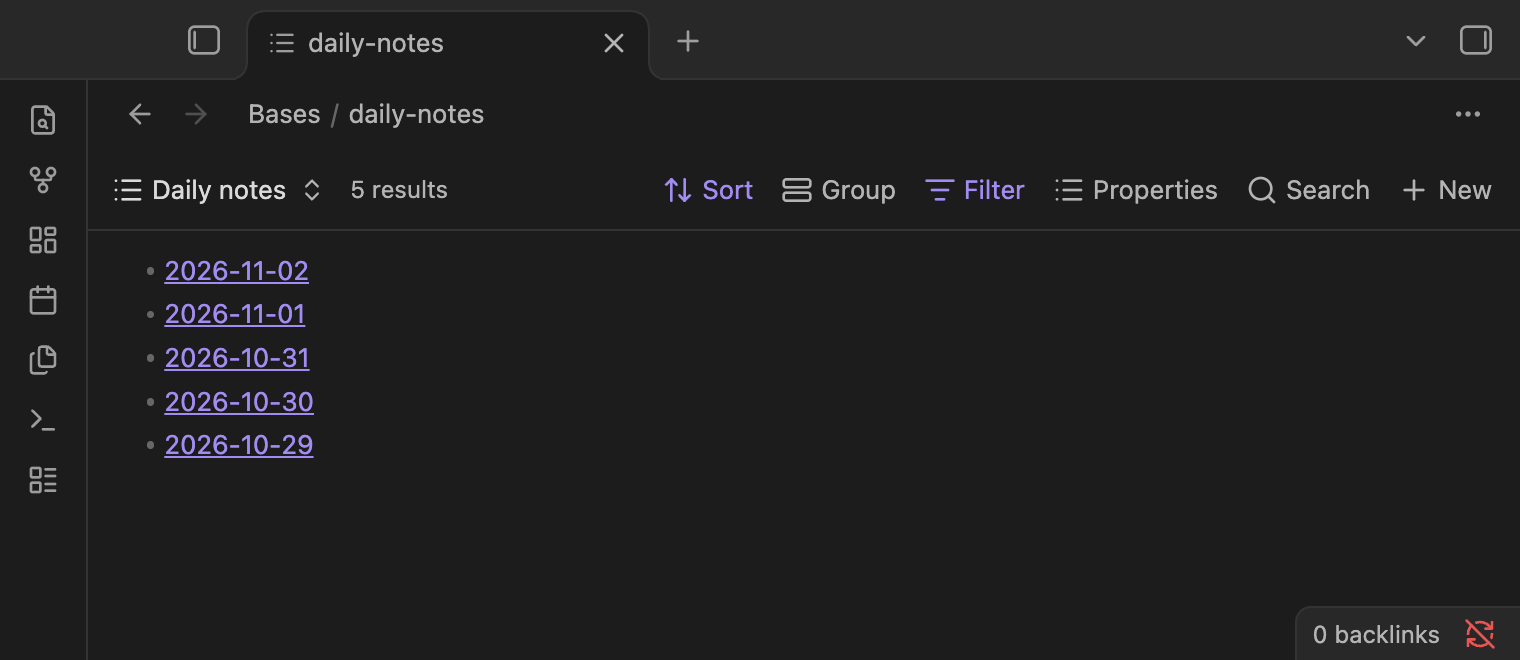
properties:
  file.name:
    displayName: Note
  file.folder:
    displayName: Folder
  file.mtime:
    displayName: Modified
views:
  - type: list
    name: Daily notes
    filters:
      and:
        - file.hasTag("daily")
        - '!file.inFolder("Templates")'
    order:
      - file.name
    sort:
      - property: file.name
        direction: DESC
    limit: 31
  - type: table
    name: Edited this week
    filters:
      and:
        - 'file.mtime > now() - "1 week"'
        - 'file.ext == "md"'
        - '!file.inFolder("Templates")'
    order:
      - file.name
      - file.folder
      - file.mtime
    sort:
      - property: file.mtime
        direction: DESC
Tips that save time
- Quote filters that start with
!or contain quotes, as in'!file.inFolder("Templates")'. YAML reads a bare!as something else. - Spell values the same way everywhere.
In progressandIn Progressbecome two separate Kanban columns. Templates prevent this. - Prefer
file.linksoverfile.backlinks. Obsidian's help notes that backlinks are slow and don't refresh automatically. - Open a base in the right sidebar and
thisbecomes the note open in the main pane, so a filter likefile.hasLink(this.file)follows you as you move between notes.
Bases or Dataview?
Dataview is a popular community plugin with its own query language and JavaScript. Its query results are read-only views. Bases is built in, needs no query language for everyday filters, and lets you edit properties in the view. If you already rely on Dataview queries, they keep working; Bases is a good fit for new tables and boards, and for anyone who would rather click than write queries.
Let AI fill the properties
A base is only as good as the properties in your notes. If you have years of notes without them, an AI agent can add them for you.
SystemSculpt is a free Obsidian plugin that puts an AI chat in a side pane. On desktop it can run your own signed-in Claude Code or Codex, with no SystemSculpt account. Attach notes with @ and ask, for example: "Add author, status and rating properties to every note in Books/, using what each note says." Pick Ask mode in the run line (Ask before edits with Claude Code) to approve each change before it is written.
Install the free SystemSculpt plugin from Obsidian's community plugins. Hosted AI, including chat on your phone, uses a SystemSculpt account; eligible new accounts can claim 500 one-time starter credits with no card, and paid plans are $9 a month or $90 a year. Compare plans.
Common questions
Is Obsidian Bases free? Yes. It is a core plugin included with Obsidian, on desktop and mobile.
Where is a base stored? In a .base file in your vault, written in YAML, or in a base code block inside a note. Your data stays in the notes' properties.
Why is my base showing every file? It has no filters yet. Add one, such as a tag or folder, under Filter.
Can I make a Kanban board in Obsidian without a plugin? Yes, since Obsidian 1.14. Add a Kanban view to a base and group it by a property such as status.
Can Bases show a calendar? Not as a built-in layout. The built-in layouts are table, cards, list, Kanban and map; community plugins can add more.
Can I import a Notion database into Bases? Yes. Obsidian's Importer plugin turns Notion databases into bases. See our Obsidian vs Notion guide.
Sources
- Introduction to Bases, Create a base and Views, Obsidian Help
- Bases syntax, Formulas and Functions, Obsidian Help
- Kanban view, Cards view and Map view, Obsidian Help
- Import from Notion, Obsidian Help
- Obsidian changelog