Obsidian Templates: 10 Free Templates and How to Use Them (2026)
On this page
- The 10 templates
- Set up the core Templates plugin
- Template variables
- Use a template for every daily note
- Copy-ready templates
- 1. Daily note
- 2. Weekly review
- 3. Monthly review
- 4. Meeting note
- 5. One-on-one
- 6. Project
- 7. Book
- 8. Person
- 9. Source note
- 10. Idea
- Templater: when core Templates is not enough
- Set up Templater
- Templater commands worth knowing
- Fill a template with AI
- Get SystemSculpt
- Common questions
- Sources
Obsidian templates are ordinary Markdown notes that you insert into other notes. Put them in one folder, point Obsidian's core Templates plugin at that folder, and every new daily note, meeting or book note starts with the same headings and properties. Templater, a community plugin, adds scripting on top when you need it.
This guide gives you 10 copy-ready templates as downloadable .md files, shows how to set up core Templates and Templater, and how to have AI fill a template from a transcript or an article. Every template uses only core Templates variables, so it works in a fresh vault with no community plugins.
Checked on November 2, 2026 against Obsidian 1.15 and Templater 2.26.
Download all 10 templates (.zip)
The 10 templates
| Template | Use it for |
|---|---|
| Daily note | Priorities, inbox, open loops and an end-of-day review |
| Weekly review | Wins, what got stuck and next week's three tasks |
| Monthly review | Goals check and next month's focus |
| Meeting note | Agenda, decisions and action items |
| One-on-one | Recurring 1:1s with a manager or report |
| Project | Outcome, milestones, next actions and a log |
| Book | Summary, key ideas and quotes |
| Person | Context, follow-ups and every meeting with them |
| Source note | An article, video or podcast you want to keep |
| Idea | One idea in your own words, with where it came from |
Select a name to download that template. Each one sets properties such as status, due or author; the full files are below.
The properties are not decoration. They are what lets you sort and filter these notes later, for example in a table of every book you finished this year. Our Obsidian Bases guide builds five such views from exactly these templates.
Set up the core Templates plugin
Templates is a core plugin, so it ships with Obsidian and needs no install.
- Create a folder called
Templatesin your vault. - Put the template files in it. Download them above, or create a note and paste a template from this page.
- Open Settings → Core plugins and turn on Templates.
- Under Templates → Template folder location, choose
Templates.
To use a template, create or open a note, then select Insert template in the left ribbon or run Templates: Insert template from the command palette. Pick a template, and its text appears at your cursor.
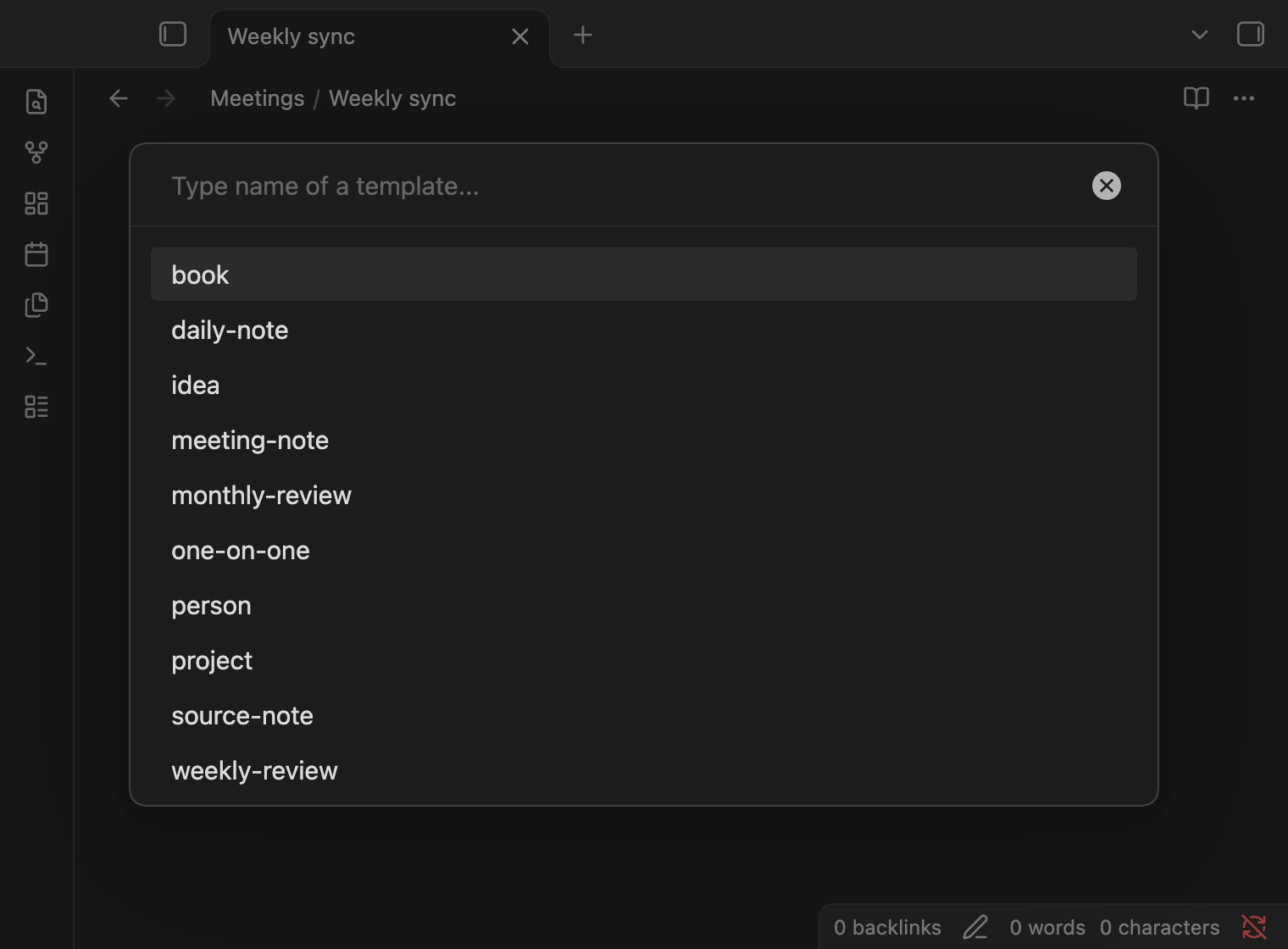
If the note already has properties, Obsidian merges the template's properties into them instead of adding a second block.
Template variables
Core Templates replaces three variables when you insert a template:
| Variable | Becomes |
|---|---|
{{title}} | The title of the note you insert into |
{{date}} | Today's date, YYYY-MM-DD by default |
{{time}} | The current time, HH:mm by default |
Add a format after a colon to change the output: {{date:dddd, MMMM D}} gives Monday, November 2, and {{date:GGGG-[W]WW}} gives the ISO week, such as 2026-W45. The formats are Moment.js format tokens.
Keep date variables in properties inside quotes, as in date: "{{date:YYYY-MM-DD}}". Obsidian's help warns that the properties editor in Live Preview can overwrite unquoted template variables. All 10 templates here already quote them.
Use a template for every daily note
The core Daily notes plugin can apply a template automatically:
- Turn on Daily notes in Settings → Core plugins.
- Open Settings → Daily notes.
- Set Template file location to
Templates/daily-note. - Optionally set New file location to a
Dailyfolder.
From then on, Open today's daily note creates the note from the template. Our daily note template guide explains each section of that template and a version for heavy task lists.
Copy-ready templates
Each block below is the full file. Paste it into a new note in your Templates folder, or use the download links above.
1. Daily note
---
tags:
  - daily
date: "{{date:YYYY-MM-DD}}"
---

# {{date:YYYY-MM-DD}}

## Top priorities
- [ ]
- [ ]
- [ ]

## Inbox
-

## Notes log
-

## Open loops
- [ ]

## End-of-day review

### Recap
-

### Carry forward
- [ ]

### Tomorrow
-
2. Weekly review
---
tags:
  - weekly
week: "{{date:GGGG-[W]WW}}"
date: "{{date:YYYY-MM-DD}}"
---

# Week {{date:GGGG-[W]WW}}

## Wins
-

## What moved
-

## What got stuck, and why
-

## Open loops to close or drop
- [ ]

## Next week

### The one outcome that matters most
-

### Top three tasks
- [ ]
- [ ]
- [ ]

### Calendar check
- Meetings to prepare for:
- Deadlines:
3. Monthly review
---
tags:
  - monthly
month: "{{date:YYYY-MM}}"
---

# {{date:MMMM YYYY}}

## Highlights
-

## Goals check

| Goal | Where it stands | Keep, change or drop |
|---|---|---|
| | | |

## Projects
- Finished:
- Still active:
- Paused or dropped:

## What I learned
-

## Next month
- Focus:
- First step:
4. Meeting note
Name the note after the meeting, then insert the template. {{title}} becomes the heading. Put each attendee in the attendees list as a link, such as "[[Alex Rivera]]", so the meeting shows up on that person's note.
---
tags:
  - meeting
date: "{{date:YYYY-MM-DD}}"
time: "{{time:HH:mm}}"
attendees:
  - "[[]]"
project: "[[]]"
---

# {{title}}

## Agenda
-

## Notes
-

## Decisions
-

## Action items
- [ ] Owner, task, due date

## Follow-up
- Next meeting:
5. One-on-one
---
tags:
  - meeting
  - one-on-one
date: "{{date:YYYY-MM-DD}}"
attendees:
  - "[[]]"
---

# {{title}}

## Their topics
-

## My topics
-

## Since last time
- Wins:
- Blockers:

## Feedback
- Given:
- Received:

## Action items
- [ ] Them:
- [ ] Me:
6. Project
The status values Planned, In progress and Done match the Kanban board in our Bases guide.
---
tags:
  - project
status: Planned
start: "{{date:YYYY-MM-DD}}"
due:
area:
---

# {{title}}

## Outcome
What is true when this project is done?

## Why it matters
-

## Milestones
- [ ]
- [ ]
- [ ]

## Next actions
- [ ]

## Notes and links
-

## Log
- {{date:YYYY-MM-DD}}: Project created.
7. Book
Use To read, Reading or Finished for status. cover can be a link to an image in your vault, an image URL or a hex colour such as "#2f5d8a"; Bases shows it as the card cover.
---
tags:
  - book
author:
status: To read
rating:
started:
finished:
cover:
---

# {{title}}

## Why I'm reading it
-

## Summary in three sentences
1.
2.
3.

## Key ideas
-

## Quotes
>

## How I'll use it
-

## Related notes
- [[]]
8. Person
The base block at the end lists every meeting note that links to this person. It needs the core Bases plugin, Obsidian 1.9 or later.
---
tags:
  - person
organization:
role:
email:
last_contact: "{{date:YYYY-MM-DD}}"
---

# {{title}}

## Context
- How we met:
- What they work on:

## Things to remember
-

## Follow-ups
- [ ]

## Meetings

```base
filters:
  and:
    - file.hasTag("meeting")
    - file.hasLink(this.file)
views:
  - type: table
    name: Meetings
    order:
      - file.name
      - date
    sort:
      - property: date
        direction: DESC
```
9. Source note
---
tags:
  - source
type: Article
author:
url:
date_read: "{{date:YYYY-MM-DD}}"
---

# {{title}}

## In one line
-

## Main points
-

## Evidence or examples worth keeping
-

## What I agree or disagree with
-

## Ideas this sparked
- [[]]
10. Idea
---
tags:
  - idea
created: "{{date:YYYY-MM-DD}}"
status: Seed
---

# {{title}}

## The idea
Write it in your own words, in one or two sentences.

## Why it might be true
-

## Where it came from
- [[]]

## Connects to
- [[]]

## Next step
- [ ]
Templater: when core Templates is not enough
Templater is a free community plugin. Use it when you want a template to do something, not only paste text: link to yesterday's note, ask you a question, move the new note to a folder or apply itself when a note is created.
| Core Templates | Templater | |
|---|---|---|
| Install | Built in | Community plugin |
| Variables | {{title}}, {{date}}, {{time}} | Dates with offsets, file details, prompts, JavaScript |
| Runs on new notes automatically | Only through the Daily notes and Unique note creator plugins | Yes, per folder or file-path pattern |
| Mobile | Yes | Yes, except system commands |
| Best for | Fixed structure | Templates with logic |
Set up Templater
- Open Settings → Community plugins, select Browse, search for Templater, then Install and Enable.
- In Settings → Templater, set Template folder location to
Templates. Core Templates and Templater can share the folder. - To apply templates automatically, turn on Trigger Templater on new file creation, set Template matching mode to Folder templates, and add rules such as
Meetings→Templates/meeting-note.
Templater commands worth knowing
Templater commands sit between <% and %>:
| Command | Output |
|---|---|
<% tp.file.title %> | The note's title |
<% tp.date.now("YYYY-MM-DD") %> | Today's date |
<% tp.date.now("YYYY-MM-DD", -1, tp.file.title, "YYYY-MM-DD") %> | The day before the date in the note's title |
<% tp.date.now("YYYY-MM-DD", 1, tp.file.title, "YYYY-MM-DD") %> | The day after it |
<% tp.system.prompt("Who is this meeting with?") %> | Asks you, then inserts your answer |
<% tp.file.cursor() %> | Where the cursor lands after inserting |
The title-based dates are what most people want in a daily note: a note created for a past day still links to the days around it.
---
tags:
  - daily
date: "<% tp.file.title %>"
---

← [[<% tp.date.now("YYYY-MM-DD", -1, tp.file.title, "YYYY-MM-DD") %>]] | [[<% tp.date.now("YYYY-MM-DD", 1, tp.file.title, "YYYY-MM-DD") %>]] →

## Top priorities
- [ ] <% tp.file.cursor() %>
Templater can also run JavaScript and, if you turn it on, system commands. Only use Templater templates you wrote or have read.
Fill a template with AI
A template gives a note its shape. Filling it from a long transcript, an article or a pile of rough notes is the slow part, and it is a good job for AI.
SystemSculpt is a free Obsidian plugin that puts an AI chat in a side pane of your vault. On desktop it can run your own signed-in Claude Code or Codex, with no SystemSculpt account. The AI can read the notes you attach and create the new note in your vault.
- Install SystemSculpt AI from Obsidian's community plugins and run Open SystemSculpt Chat.
- In the message box, type
@and pick your template, then type@again and pick the source: a meeting transcript, an article you clipped or your rough notes. - Ask for the note. For example:
Create a new note in Meetings/ called "2026-11-02 Design review"
from @meeting-note, filled in from @Design review transcript.
Keep the template's properties and headings. Put decisions under
Decisions and each action item with its owner and date.
The result is a plain Markdown note in your vault, with the template's properties filled in, so it shows up in your Bases views like any note you wrote by hand. If you want to approve the file before it is written, pick Ask mode in the run line under the message box (Ask before edits with Claude Code).
The same works for a book note from your highlights, a person note from an email thread, or a weekly review from the week's daily notes. To start from audio, SystemSculpt's hosted transcription turns a recording into a Markdown transcript first.
Get SystemSculpt
Install the free SystemSculpt plugin from Obsidian's community plugins. With your own Claude Code or Codex on desktop it needs no SystemSculpt account or plan.
Hosted AI, including chat on your phone and audio transcription, uses a SystemSculpt account. Eligible new accounts can claim 500 one-time starter credits with no card. Paid plans are $9 a month or $90 a year. Compare plans.
Common questions
Where do Obsidian templates go? In any folder you choose. Set it under Settings → Templates → Template folder location. Most people call it Templates.
Can a template apply itself to every new note? For daily notes, yes, through the Daily notes plugin; Unique note creator can use a template too. For other folders, use Templater's folder templates.
Why does my template show {{date}} instead of the date? You opened the template file itself, or pasted it by hand. Insert it with Templates: Insert template so the variables are replaced. Templater's <% %> commands also need Templater, not core Templates.
Do templates work on mobile? Yes. Core Templates and Templater both work in Obsidian's mobile apps; Templater's system commands are desktop only.
Will my templates show up in searches and Bases? Yes, because they carry the same tags. Exclude the folder with a filter such as !file.inFolder("Templates"), as every base in our Bases guide does.
Sources
- Templates, Obsidian Help
- Daily notes, Obsidian Help
- Properties, Obsidian Help
- Obsidian changelog
- Templater documentation and Templater on GitHub