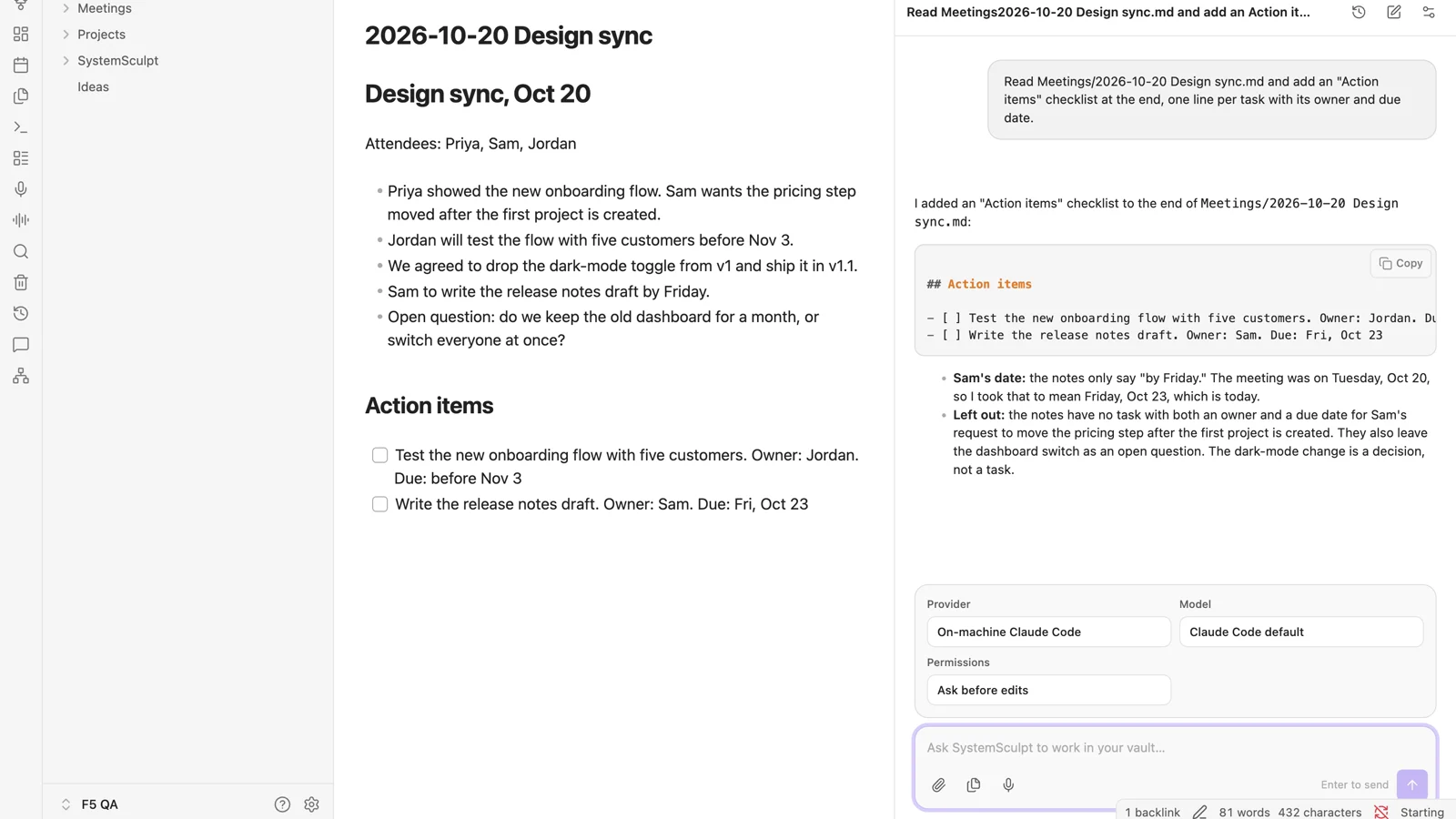
If you already use Claude Code in a terminal, you can use the same install inside Obsidian.
SystemSculpt is a free community plugin. It adds a chat pane that runs your own Claude Code in your vault folder, with your login, your settings and your permission rules. You don't need a SystemSculpt account or plan for it.
The screenshot above is SystemSculpt 6.13 in Obsidian. Claude Code read a meeting note, asked before editing it, and then added an action-item checklist.
What you need
- Obsidian on desktop. Claude Code chat is desktop only. On mobile, SystemSculpt's chat uses its hosted AI instead.
- Claude Code, installed and signed in. If you have never signed in, run
claudein a terminal once and type/login. - SystemSculpt 6.13 or later, from Obsidian's Community plugins.
Set it up in 3 steps
1. Install SystemSculpt. In Obsidian, open Settings, then Community plugins, then Browse. Search for SystemSculpt, then select Install and Enable. Or use the SystemSculpt page in the Obsidian plugin directory.
A welcome screen offers a free SystemSculpt account for the hosted features. Claude Code doesn't need one, so you can choose Explore on my own.
2. Open chat and pick Claude Code. Select the chat icon in the left ribbon (Open chat), or run SystemSculpt AI: Open chat from the command palette. Above the message box, set Provider to On-machine Claude Code.
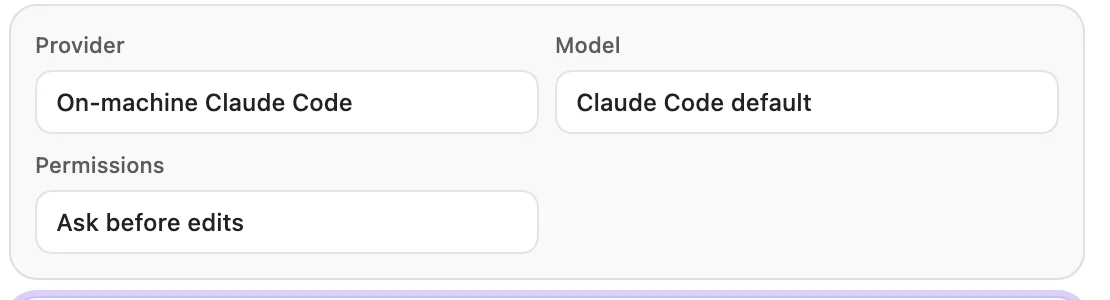
Model and Permissions appear as soon as you choose Claude Code.
3. Ask about your notes. For example: "Read Meetings/2026-10-20 Design sync.md and add an Action items checklist at the end, one line per task with its owner and due date." Claude Code reads the files it needs. Before it edits a note, SystemSculpt shows the exact change, with Approve once and Decline.
If Claude Code is missing or signed out, the chat says so and shows the command that fixes it. If claude lives somewhere unusual, point SystemSculpt at it with a small file at ~/.config/systemsculpt/claude.json containing { "binary": "/path/to/claude" }.
Model and permissions
With Claude Code selected, two more choices sit above the message box:
- Model: Claude Code's default, Opus, Sonnet or Haiku.
- Permissions: Claude Code's own modes. Ask before edits is the default. Accept edits lets it edit without asking, Plan only keeps it to planning, and Claude Code settings uses your own configuration unchanged. SystemSculpt never turns on Claude Code's permission bypass.
A change applies from your next message.
What stays on your machine
- Claude Code runs as a local process in your vault folder, just like running
claudein a terminal there. It uses your own Claude login, settings, tools and session history. - Your messages and the notes Claude Code reads go to Anthropic through your Claude Code account, as they would in a terminal. They don't pass through SystemSculpt's servers, and they don't use SystemSculpt credits.
- SystemSculpt never reads, copies or uploads anything in
~/.claude, including your Claude Code credentials. - Each chat is saved as a note in your vault. Reopening a chat resumes the same Claude Code session.
Codex works the same way
If you use OpenAI's Codex CLI instead, set Provider to On-machine Codex. It uses your existing Codex login, and its own approval and sandbox settings decide what it may do. Like Claude Code, it is desktop only and needs no SystemSculpt plan.
When you want hosted AI too
Some SystemSculpt features run on its hosted AI rather than on Claude Code: audio transcription, related-note search across your vault, document processing and image generation.
A free SystemSculpt account comes with 500 one-time starter credits for these, and no card is needed. Choose Start free on the welcome screen, or Sign up in Settings, SystemSculpt AI, Account. Paid plans are $9 a month or $149 once for lifetime access, and both include a monthly credit allowance.
Common questions
Does it cost anything? The plugin is free, and Claude Code chat needs no SystemSculpt plan. Claude Code itself runs on your Claude account, as it does in a terminal.
Does it work on iPhone, iPad or Android? Claude Code doesn't. On mobile, SystemSculpt's chat uses its hosted AI.
Can Claude Code change my notes without asking? Not with Ask before edits, the default: every edit waits for your approval. Accept edits lets it edit without asking, and you can switch back at any time.
Where are the docs? The chat workspace guide covers the chat pane, and getting started covers installation.
Install SystemSculpt from the Obsidian plugin directory, then set Provider to On-machine Claude Code.